Tuesday, August 04, 2020

Enable automated backups for Nextcloud - 4 backups

Once I had the entire nextcloud setup with mobile client sync, It was important to have the backup process setup before I add more users/files. This makes the installation more reliable as a personal data storage. This allows a point in time recovery for all the data in your nextcloud.

The target is to setup 3-2-1 backup rule for my nextcloud instance at a minimum. if you are not familiar with this general backup guideline I suggest you read more on it before you proceed.
  • 3 copies of production data
  • 2 media types
    • Elastic File System (non-versioned)
    • Object Storage (versioned)
  • 1 offline copy (versioned) - setting up the offline copy isnt covered in this page

There are following options to choose from when deciding how to use the object storage as the versioned backup solution:
  1. Setup object storage as filesystem (s3fs)
    1. (pro) get a point in time copy of data that isn't cloud provider dependent
    • (pro) allows the backup shell script to take care of object rotation. 
    • (con) unnecessarily expose all backup data in the filesystem.
    • (con) makes it harder to use the object storage from the context of another client application
  2. Use s3cmd for uploading the backup
    1. (pro) can use the S3cmd sync for storage/filesystem backup
    2. (con) need to manage lifecycle/versions of data outside the backup script
  3. Use cloud provider native snapshots
    1. (pro) use provider specific APIs to take snapshots of compute and block storage
    2. (pro) easiest/fastest recovery option
    3. (con) snapshots arent useful outside the cloud provider
I prefer option2 as of now, and given theres flexibility to change the backup design as the service scales I don't see the need to over-engineer it as of now. In near future I will have both option2 and option3 running in parallel. 

Heres the steps I followed:
  1. Setup the DigitalOcean Space and get a managed key
  2. Install and Configure S3cmd
    1. https://www.digitalocean.com/docs/spaces/resources/s3cmd/
    2. sudo apt-get update
    3. sudo apt-cache madison s3cmd (make sure the version is above 2)
    4. sudo apt-get install s3cmd -y
    5. sudo s3cmd --configure (go through the interactive process)
  3. Create Backup folder
    1. sudo mkdir -p /media/nextcloud_data/backups
    2. sudo mkdir -p /media/nextcloud_data/backups/logs
    3. sudo mkdir -p /media/nextcloud_data/backups/tmp
  4. Create backup script
    1. sudo vim /usr/sbin/nextcloudbackup.sh
    2. Todo: get script from github
    3. sudo chmod +x /usr/sbin/nextcloudbackup.sh
    4. sudo /usr/sbin/nextcloudbackup.sh
  5. Cron setup
    1. sudo visudo
    2. opuser ALL=(ALL) NOPASSWD: /usr/sbin/nextcloudbackup.sh
    3. sudo crontab -u <username> -e
    4. 0 2 * * * sudo /usr/sbin/nextcloudbackup.sh
  6. Backup pod and volume

Reading material:

Sunday, August 02, 2020

Set up nextcloud on Digitalocean - 3 basic setup (from scratch)

Once I gained enough confidence that nextcloud is the choice of system for replacing my cloud storage providers, I decided its best to set up nextcloud from scratch instead of using SNAP based installation to make sure I have more fine grained control on next cloud config, debug controls, tinkering with code level patches, etc..

Im not going to going to worry about scripting the entire installation on chef/puppet yet. This will be done later when the project is ready to be productionised.

Once the functional aspects are setup properly, I will have time to worry about non functional requirements (security / backup, restore / monitoring / performance / cost efficiency / high availability / etc..)

heres the steps I followed:
  1. https://www.digitalocean.com/community/tutorials/initial-server-setup-with-ubuntu-18-04
  2. sudo apt-get update
  3. sudo apt-get upgrade
  4. https://www.youtube.com/watch?v=wd6NvOFERJc
    1. sudo apt install -y apache2 mariadb-server mariadb-client php libapache2-mod-php php-gd php-json php-mysql php-curl php-mbstring php-intl php-imagick php-xml php-zip
    2. sudo systemctl start apache2
    3. sudo systemctl start mariadb
    4. sudo systemctl enable apache2
    5. sudo systemctl enable mariadb
    6. sudo mysql_secure_installation (follow through the steps)
    7. sudo ufw allow http
    8. sudo ufw allow https
    9. sudo ufw enable
    10. Setup DB and DB user
      1. sudo mysql -u root -p
      2. create database <dbname>;
      3. create user <name@host> identified by '<pass>';
      4. grant all on <db> to <user>;
      5. flush privileges;
    11. cd /var/www
    12. sudo wget https://download.nextcloud.com/server/releases/latest-19.tar.bz2
    13. tar -xvf <tar file>
    14. chown -R www-data:www-data nextcloud/
    15. Setup Apache
      1. sudo vim /etc/apache2/sites-available/nextcloud.conf
      2. add content to conf (https://docs.nextcloud.com/server/19/admin_manual/installation/source_installation.html#prerequisites-for-manual-installation)
      3. sudo a2ensite nextcloud.conf 
      4. sudo a2enmod rewrite
      5. sudo a2enmod headers
      6. sudo a2dissite 000-default
      7. sudo systemctl restart apache2
    16. Map block storage to droplet
      1. https://www.digitalocean.com/community/questions/configuring-volumes
      2. sudo mkdir -p /media/nextcloud_data
      3. sudo mount -o discard,defaults,noatime /dev/disk/by-id/<disk-id> /media/nextcloud_data
      4. sudo echo '/dev/disk/by-id/<disk-id> /media/nextcloud_data ext4 defaults,nofail,discard 0 0' | sudo tee -a /etc/fstab
      5. sudo chown -R www-data:www-data /media/nextcloud_data
      6. sudo chmod -R 774 /media/nextcloud_data
      7. sudo mkdir /media/nextcloud_data/data
      8. sudo chown -R www-data:www-data /media/nextcloud_data/data
      9. sudo chmod -R 770 /media/nextcloud_data/data
    17. Goto http:<public-ip> or <domain> to continue with the web setup
    18. Update config.php at /var/www/nextcloud/config to add the trusted domains
    19. Setup SSL for nextcloud instance
      1. https://www.youtube.com/watch?v=mGcqC3oOINw
      2. sudo add-apt-repository ppa:certbot/certbot
      3. sudo apt install python-certbot-apache -y
      4. sudo certbot --apache -d <domain>
        1. Go through the interactive setup
    20. Follow up with part 2 to finalise the social login setup
    21. Remove all unwanted apps via nextcloud admin panel
      1. collaborative tags
      2. contacts interactions
      3. Federation
      4. First run wizard
      5. Support
      6. Usage Survey
    22. Setup PHP for memory limit and file uploads
      1. sudo vim /etc/php/7.2/apache2/php.ini
      2. memory_limit = 512M
      3. upload_max_filesize = 100M
      4. sudo systemctl restart apache2
    23. Setup MariaDB for 4byte characters
      1. sudo mysql -u root -p
      2. MariaDB prompt:  use nextcloud;
      3. MariaDB prompt:  set global innodb_large_prefix=on;
      4. MariaDB prompt:  set global innodb_file_format=Barracuda;
      5. cd /var/www/nextcloud
      6. sudo -u www-data php occ config:system:set mysql.utf8mb4 --type boolean --value="true"
      7. sudo -u www-data php occ maintenance:repair
      8. sudo -u www-data php occ maintenance:mode --off
    24. Install missing PHP libs
      1. sudo apt-get install -y php-gmp php-bcmath
      2. sudo systemctl restart apache2
    25. Setup log location
      1. update log config
        1. "log_type" => "file",
        2. "logfile" => "/var/log/nextcloud.log",
        3. "loglevel" => 2,
        4. "logdateformat" => "F d, Y H:i:s",
        5.  'log.condition' => [
        6.     'apps' => ['admin_audit'],
        7.  ]
      2. sudo touch /var/log/nextcloud.log
      3. sudo chown www-data /var/log/nextcloud.log
      4. sudo systemctl restart apache2
    26. Change nextcloud cron to run via OS cron (you can do this via UI)
      1. https://docs.nextcloud.com/server/19/admin_manual/configuration_server/background_jobs_configuration.html
      2. crontab -u www-data -e
      3. */5  *  *  *  * php -f /var/www/nextcloud/cron.php
    27. take a back up of the pod and volume

    Wednesday, July 29, 2020

    Social logins for nextcloud via auth0 - 2 Auth Server

    Following up on the previous blog post on setting up a basic nextcloud server on digitalocean, the next step is to setup an auth/SSO server so I dont have to create individual users on nextcloud.

    After reviewing keycloak, gluu and other opensource SSO mamangers, I decided to go with auth0 as a hosted service. it gives me the basic functionality I need for next cloud setup. I'm not sure yet if I have to worry about user data migration if I'm to change auth server, but for the time being i'm not going to consider this as a blocker.

    Steps followed:
    1. https://medium.com/@mathiasconradt/nextcloud-single-sign-on-with-auth0-a546cdf1fccf
      1. setup auth0 account and follow the auth0 config instructions
    2. login to adminportal of nextcloud and go to apps, install "SSO & SAML authentication" app
      1. I had to browse through the enterprise bundle to find this app 
    3. go to settings -> "SSO / SAML authentication"
      1. tick "Allow the use of multiple user back-ends (e.g. LDAP)"
      2. attribute to map UID : http://schemas.xmlsoap.org/ws/2005/05/identity/claims/nameidentifier
      3. identity of the IDP : urn:<tenant>.eu.auth0.com
      4. URL target of IDP: https://<tenant>.eu.auth0.com/samlp/<auth0_client_id>
      5. URL Location of the IdP where the SP will send the SLO Request: https://<tenant>.eu.auth0.com/samlp/<auth0_client_id>/logout
      6. Public X.509 certificate of the IdP:<copy the certificate from the Auth0 application settings :: advanced>
      7. Attribute to map the displayname to : http://schemas.xmlsoap.org/ws/2005/05/identity/claims/name
      8. Attribute to map the email address to : http://schemas.xmlsoap.org/ws/2005/05/identity/claims/emailaddress
    4. Setup the redirect.html according to the article
      1. sudo vim /var/www/nextcloud/redirect.html
      2. sudo chown www-data:www-data /var/www/nextcloud/redirect.html
    5. Disable signups and enable email allowlist for social logins on Auth0
      1. https://auth0.com/rules/simple-user-whitelist
    6. good time to backup the droplet

    Set up nextcloud on digitalocean - 1 Basic setup (snap)

    I've always wanted to setup a private file share family and friends that is secure. Looks like Nextcloud have the best feature set, and I've decided to give it a shot. If all goes well I will have a simple, efficient setup to use as a file backup on cloud with mobile access.

    Once the functional aspects are setup properly, I will have time to worry about non functional requirements (security / backup, restore / monitoring / performance / cost efficiency / high availability / etc..)

    heres the steps I followed:
    1. https://www.digitalocean.com/community/tutorials/initial-server-setup-with-ubuntu-18-04
      I didnt worry about UFW as I will be using DigitalOcean cloud firewall rules to secure hosts at a network level for now. host level firewall is a possible future addon
    2. https://www.digitalocean.com/community/tutorials/how-to-install-and-configure-nextcloud-on-ubuntu-18-04
    3. Have the block storage attached to the droplet 
    4. sudo snap stop nextcloud
    5. https://www.digitalocean.com/community/questions/configuring-volumes
      1. sudo mkdir -p /media/nextcloud_data
      2. sudo mount -o discard,defaults,noatime /dev/disk/by-id/<disk-id> /media/nextcloud_data
      3. sudo echo '/dev/disk/by-id/<disk-id> /media/nextcloud_data ext4 defaults,nofail,discard 0 0' | sudo tee -a /etc/fstab
    6. read through https://askubuntu.com/questions/882625/nextcloud-snap-with-data-directory-on-external-harddrive
      1. sudo mv /var/snap/nextcloud/common/nextcloud/data ./nextcloud_data/data
      2. sudo vi /var/snap/nextcloud/current/nextcloud/config/config.php
    7. sudo snap start nextcloud
    8. go to the application and do a quick sanity check as admin. 
    9. This is a good time to take a backup for droplet as you may want to restart the journey from here in case

    Additional reading material:

    Wednesday, October 03, 2018

    API gateway deployment patterns (based on organisation hierarchy)

    Introduction

    Most of the large organisations have built a certain organisational culture around how they build, operate and integrate the systems they own which leads to boundaries between teams on what they are responsible for. Over the years I have seen a pattern of organisation hierarchy where the integration systems such as enterprise service bus, API gateway and other messaging appliances are managed by a central team for clear ownership of technology standards and for its benefits from economies of scale in operation.

    This article covers API gateway deployment patterns for organisations with such central integration teams. and towards the end article there is a reference table that summarises the capabilities of each option.

    This article doesn't cover following in detail:
    • Perimeter security measures implemented in load balancers
    • Applications hosted on public cloud/container orchestration platforms (mostly falls into option1 pattern)

    The different patterns covered in the article:
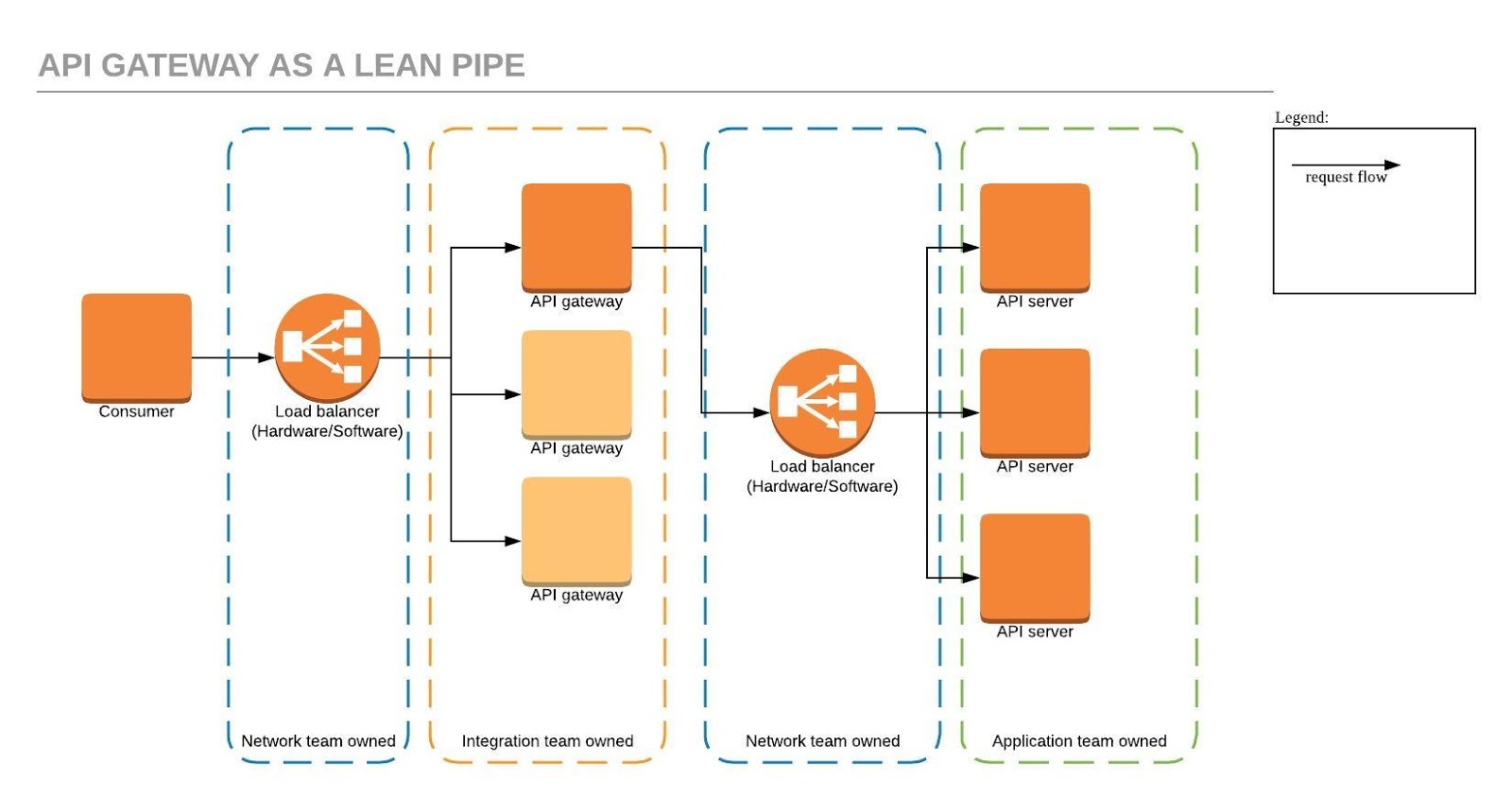
    1. API gateway as a lean pipe (option 1)
    2. API gateway as a lean pipe with load balancing (option 2)
    3. API gateway with service registry/service discovery capability (option 3)

    API gateway as a lean pipe (option 1)


    This is a common pattern teams default to. Mostly due to its the natural extension of their existing team boundaries. In this pattern we don't use load balancing, health checking and circuit breaking capabilities that are provided by the api gateway.

    Situations such as capacity increases, health based routing, blue-green deployments and DR fail over need to be managed via the load balancer config for each application.

    API gateway as a lean pipe with load balancing (option 2)


    This is a common pattern for non-critical applications that is build with fixed capacity in mind. In this pattern we use load balancing, health checking and circuit breaking capabilities that are provided by the api gateway, however this leads to static registration of API servers at the API gateway and it makes managing situations such as capacity increases, blue-green deployments and DR fail over very complex to manage operationally as API gateway config needs to be updated in each situation.

    API gateway with service registry/service discovery capability (option 3)


    This pattern is very similar to option2. It uses service registry and service discovery to minimise the config changes needed by the API gateway thus making is very easy for the applications teams to manage situations such as capacity increases, blue-green deployments and DR fail over quite seamlessly.

    Summary

    There is no one-size-fit-all solution for API Gateway deployments. Each integration scenario needs to be evaluated carefully and designed for to ensure right capabilities of the gateway are used to deliver the expected outcome. the following table summarises the article.

    Criteria
    Option 1
    Option 2
    Option 3
    Authentication management at the gateway
    Yes
    Yes
    Yes
    Rate limiting / throttling at the gateway
    Yes
    Yes
    Yes
    Header based routing at the gateway
    Yes
    Yes
    Yes
    Circuit breaking at the gateway
    No
    Yes
    Yes
    Load balancing / health checking at the gateway
    No
    Yes
    Yes
    DNS/lookup based routing at the gateway
    No
    No
    Yes
    No of components a request pass through
    5
    4
    3
    Single point of failures
    2
    1
    0
    Capacity increase / failover logic in gateway config 
    No
    Yes
    No

    How does your organisation tackle API gateway deployment? Join the conversation and leave a comment.

    Monday, January 02, 2017

    Books I've read during 2015 and 2016

    These are the books that kept me company during the last two years, and i'd recommend anyone to read them if you have the time. I'm planning to re-read them sometime in the future and add my summary to each book so I can make better recommendations.

    The books are broken down in to three broad categories:

    1. Technology - all technology related books including architecture, software team management, mobile app design, devops, etc.. I didn't see the point of breaking them down further.

    2. Financial - this category is dedicated to personal finance, wealth management, business modelling and economical books.

    3. Personal - covers other books that didn't fit well into the first two categories.

    Given how forgetful I'm at times Im sure I will forget the fine-print of the contents in these books. But having read them, now I'm more confident in finding the right reference when I need this information again.

    Happy reading and happy learning everyone!!!

    Technology


    Financial


    Personal


    * note - all amazon links are generated using the affiliate product links

    Friday, March 11, 2016

    HTC Desire Z upgrade to ICS

    Well now that I've managed to downgrade and root my HTC Desire Z, I think its time to start pushing newer roms to check how the phone takes the upgrades. this is purely for testing purposes.

    The write up for downgrade and rooting can be found at the following link.

    So the first step is to find a ROM thats stable enough to test. After reading up different forums I thought to stick with Andromadus Mimicry rom.
    * http://forum.xda-developers.com/showthread.php?t=1714187

    Here's the summary of the steps that I followed.

    1. Download the relevant files (Rom and gaaps)
    *http://forum.xda-developers.com/showthread.php?t=1714187#post27494282

    2. Move the downloaded files to the same place as the "adb" executable
    *./adb push mimicry-1.5.0.zip /mnt/sdcard/
    *./adb push gapps-ics-20120429-signed.zip /mnt/sdcard/

    3. Make a nandroid backup for your current rom
    * ./adb reboot recovery
    * go to 'backup and restore' on the CWM menu
    * select 'backup'

    4. Clear cache and wipe all data
    * from CWM screen choose 'wipe data/factory reset'
    * once thats done select 'wipe cache partition'

    5. Install the ROM and GAAPS
    * from CWM menu select 'install zip from SD card'
    * from CWM menu select 'choose zip from SD card'
    * select the mimicry zip first
    * follow the graphical installer steps and finish the installation (i didn't choose the wifi calling option for T-Mobile)
    * once done choose gaaps zip file from CWM menu
    * once both installations are done run './adb reboot recovery'
    * and select 'reboot system now'
    * have patience this will take some time :)

    All good to go. Im going to test this Rom for few days before updating it to KitKat next.